
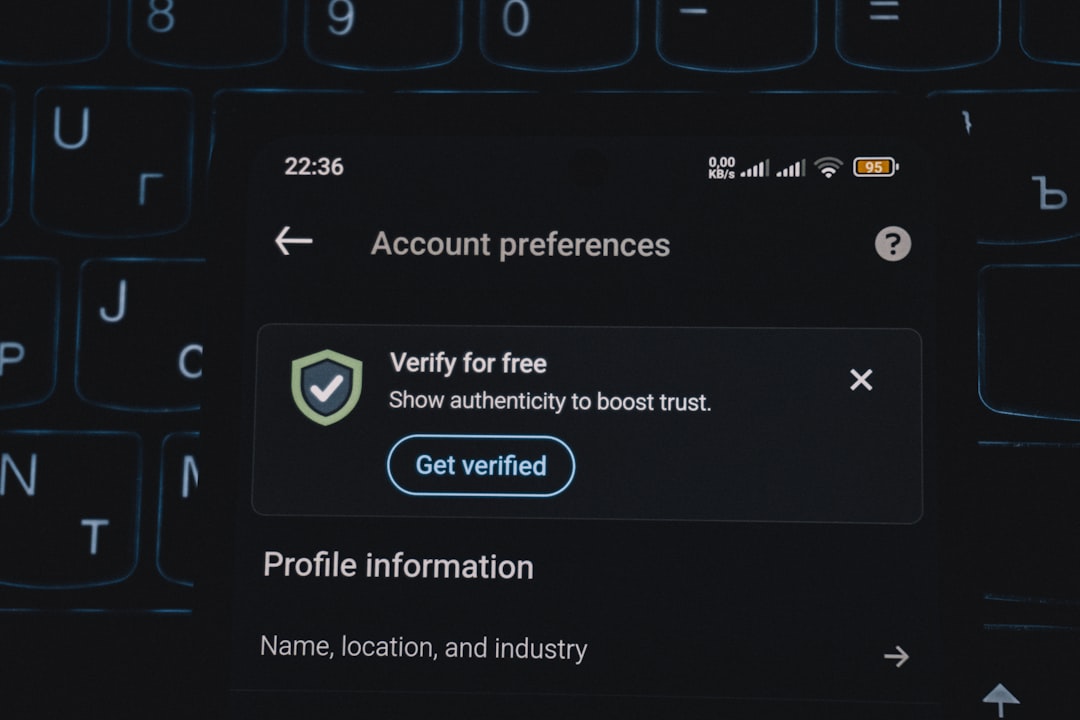
Two-Factor Authentication: How to Enable 2FA Everywhere
Introduction
Two-factor authentication (2FA) is one of the most powerful security measures you can implement to protect your digital identity. By requiring a second form of verification beyond just your password, 2FA makes it exponentially harder for cybercriminals to access your accounts—even if they’ve stolen your login credentials.
What You’ll Accomplish
By following this comprehensive guide, you’ll learn how to enable two-factor authentication across all your important accounts, from email and social media to banking and shopping platforms. You’ll understand the different types of 2FA methods available and LifeLock Review: the most secure options for your needs.
Why This Matters for Your Security
In 2023, over 24 billion passwords were exposed in data breaches. When hackers obtain your password, 2FA serves as your last line of defense. According to Microsoft, enabling two-factor authentication blocks 99.9% of automated attacks. This simple security measure can be the difference between a minor inconvenience and a devastating identity theft incident.
Time Required
Setting up 2FA across your primary accounts typically takes 2-4 hours, depending on how many services you use. While this might seem time-consuming initially, the peace of mind and security benefits make it time well invested. Most individual account setups take just 2-5 minutes each.
Before You Start
What You’ll Need
- A smartphone with internet access (for authenticator apps or SMS)
- Access to your email account (for verification emails)
- A list of all your online accounts (we recommend starting with the most critical ones)
- An authenticator app such as Google Authenticator, Authy, or Microsoft Authenticator
- Backup codes storage method (password manager, secure document, or printed copy)
Information to Gather
Before enabling 2FA, compile a list of your accounts in order of priority:
- Critical accounts: Email, banking, investment accounts, work accounts
- Important accounts: Social media, cloud storage, password managers
- Secondary accounts: Shopping sites, streaming services, gaming platforms
For each account, ensure you have:
- Current login credentials
- Access to the associated email address
- Recovery phone number on file
Prerequisites
- Ensure your phone number and recovery email are current on all accounts
- Install an authenticator app on Mobile Security:
- Have access to a secure method for storing backup codes
- Update your password manager if you use one
Step-by-Step Instructions
Step 1: Choose Your 2FA Method
Understanding your options helps you make informed security decisions:
- Authenticator apps (most secure): Generate time-based codes offline
- SMS text messages (convenient but less secure): Receive codes via text
- Hardware security keys (highest security): Physical devices for authentication
- Backup codes (emergency access): Pre-generated codes for account recovery
Recommendation: Use authenticator apps as your primary method, with SMS as a backup option.
Step 2: Start with Your Most Critical Accounts
#### Email Accounts
Gmail:
- Go to myaccount.google.com
- Click “Security” in the left sidebar
- Under “Signing in to Google,” select “2-Step Verification”
- Click “Get Started” and follow the prompts
- Add your phone number and choose text or voice calls
- Enter the verification code sent to your phone
- Click “Turn On” to activate 2FA
Outlook/Hotmail:
- Sign in to account.microsoft.com
- Select “Security” then “Advanced security options”
- Click “Turn on two-step verification”
- Choose your verification method (app, phone, or email)
- Follow the setup wizard to complete configuration
Step 3: Secure Your Financial Accounts
Banking and Investment Accounts:
- Log into your account’s website or mobile app
- Navigate to “Security Settings” or “Account Settings”
- Look for “Two-Factor Authentication,” “2FA,” or “Multi-Factor Authentication”
- Select your preferred verification method
- Complete the verification process by entering the code sent to your device
Note: Each financial institution has slightly different processes, but most follow this general pattern.
Step 4: Enable 2FA on Social Media Platforms
Facebook:
- Go to Settings & Privacy → Settings
- Click “Security and Login” in the left sidebar
- Scroll to “Two-Factor Authentication”
- Click “Edit” and choose your authentication method
- Follow the prompts to complete setup
Twitter/X:
- Go to Settings and Privacy → Security and account access
- Click “Two-factor authentication”
- Choose text message, authentication app, or security key
- Complete the verification process
Instagram:
- Go to Settings → Security → Two-Factor Authentication
- Select “Get Started”
- Choose between text message or authentication app
- Follow the setup instructions
Step 5: Set Up Authenticator App Integration
- Download an authenticator app (Google Authenticator, Authy, or Microsoft Authenticator)
- In each account’s 2FA settings, look for “Authenticator App” or “TOTP” options
- Scan the QR code displayed on screen with your authenticator app
- Enter the 6-digit code generated by the app to verify the connection
- Save backup codes provided by the service in a secure location
Pro Tip: Authy allows cloud backup of your 2FA codes, making device transfers easier while maintaining security.
Step 6: Configure Backup Methods
For each account with 2FA enabled:
- Set up multiple verification methods when possible (app + SMS)
- Download and securely store backup codes
- Add a recovery phone number different from your primary number
- Configure a recovery email address
Step 7: Test Your Setup
Before considering setup complete:
- Log out of each account
- Log back in using your username, password, and 2FA code
- Verify all verification methods work (app, SMS, backup codes)
- Ensure backup codes are accessible and stored securely
Common Issues
Problem: Not Receiving SMS Codes
Causes:
- Poor cellular reception
- Carrier delays
- International number issues
Solutions:
- Wait 2-3 minutes for delayed messages
- Try requesting the code again
- Switch to voice call option if available
- Use authenticator app instead of SMS
Problem: Authenticator App Shows Wrong Time
Causes:
- Device time synchronization issues
- Time zone mismatches
Solutions:
- Ensure your device’s time is set to automatic
- Manually sync time in authenticator app settings
- Restart the authenticator app
Problem: Lost Access to 2FA Device
Immediate Actions:
- Use backup codes to regain access
- Log into accounts and update 2FA settings
- Remove the lost device from your authenticator app accounts
- Set up 2FA on your new device
- Contact customer support if backup methods fail
- Consider professional identity recovery services for multiple compromised accounts
- Reach out to IdentityProtector.com for expert assistance with complex recovery situations
Problem: Backup Codes Not Working
Troubleshooting Steps:
- Ensure you’re using the most recent backup codes
- Check for typos when entering codes
- Verify you haven’t already used the code (they’re typically one-time use)
- Generate new backup codes if current ones are exhausted
Verification
How to Confirm Success
After enabling 2FA on each account, verify proper setup by:
- Successful login test: Log out and log back in using 2FA
- Multiple method verification: Test both primary and backup 2FA methods
- Backup code functionality: Use one backup code to ensure they work
- Account security review: Check that 2FA shows as “enabled” in security settings
What to Check
- Active 2FA indicator in account security settings
- Backup codes saved in secure, accessible location
- Recovery methods configured (backup phone, email)
- Authenticator app showing correct accounts with updating codes
Expected Outcomes
Once properly configured, you should:
- See 2FA prompts during every login attempt
- Have multiple ways to verify your identity
- Feel confident that your accounts are significantly more secure
- Have reliable backup access methods available
Related Actions
Other Protective Measures to Consider
- Use a reputable password manager
- Generate unique, strong passwords for every account
- Enable password breach monitoring
Device Security:
- Set up device lock screens with PINs or biometrics
- Enable remote wipe capabilities
- Keep devices and apps updated
Email Security:
- Enable email encryption when possible
- Be cautious with email attachments and links
- Set up email forwarding alerts
Complementary Steps
- Regular security audits: Review your 2FA settings quarterly
- Account monitoring: Set up login alerts for suspicious activity
- Identity monitoring services: Consider comprehensive protection services
- Security awareness: Stay informed about current threats and best practices
Ongoing Maintenance
- Update backup codes annually or after using several codes
- Review connected devices and remove old or unused devices
- Test backup methods every six months
- Update recovery information when phone numbers or email addresses change
FAQ
1. What happens if I lose my phone with the authenticator app?
If you lose your phone, you can still access your accounts using backup codes you should have saved during setup. Use these codes to log in, then immediately update your 2FA settings to remove the old device and add your new phone. This is why saving backup codes is crucial—they’re your lifeline when your primary 2FA method is unavailable.
2. Is SMS-based 2FA secure enough?
While SMS-based 2FA is better than no 2FA at all, it’s less secure than authenticator apps due to potential SIM swapping attacks and SMS interception. However, for most users, SMS 2FA provides significant protection improvement. We recommend using authenticator apps when possible, with SMS as a backup method.
3. Can I use the same authenticator app for multiple accounts?
Yes, and this is actually recommended. Apps like Google Authenticator, Authy, and Microsoft Authenticator can store 2FA codes for unlimited accounts. This centralizes your 2FA codes while keeping them secure. Just ensure your authenticator app itself is protected with a device lock screen.
4. How often should I update my backup codes?
Generate new backup codes at least once per year or after you’ve used several codes from your current set. Most services provide 10-12 backup codes, and once you’ve used 3-4, it’s wise to generate a fresh set. Always securely destroy old codes when replacing them.
5. What should I do if a service doesn’t offer 2FA?
If a service doesn’t offer two-factor authentication, consider whether you truly need that account. For services you must use, take extra precautions: use a unique, strong password, monitor the account closely for suspicious activity, and consider using a password manager with breach monitoring. You might also contact the service provider to request 2FA implementation.
Conclusion
Implementing two-factor authentication across your digital accounts is one of the most effective steps you can take to protect your identity online. By following this comprehensive guide, you’ve significantly strengthened your security posture and made it exponentially harder for cybercriminals to compromise your accounts.
Remember that cybersecurity is an ongoing process, not a one-time setup. Regularly review and update your security settings, stay informed about new threats, and maintain your 2FA systems with the ongoing maintenance practices outlined in this guide.
Take Complete Control of Your Identity Security
While enabling 2FA is a crucial step in protecting your digital identity, comprehensive identity protection requires ongoing vigilance and professional-grade monitoring. IdentityProtector.com helps thousands of individuals and families safeguard their identities with our complete suite of protection services.
Our advanced monitoring system watches for suspicious activity across the dark web, credit bureaus, and thousands of data sources, providing real-time alerts when your personal information is at risk. Combined with our expert recovery support team, you’ll have professional assistance available 24/7 if identity theft occurs.
Don’t leave your identity protection to chance. Visit IdentityProtector.com today to learn how our comprehensive monitoring, instant alerts, dark web scanning, and expert recovery support can provide the complete peace of mind you deserve. Your identity is invaluable—protect it with the tools and expertise that match its worth.
