Quick Take
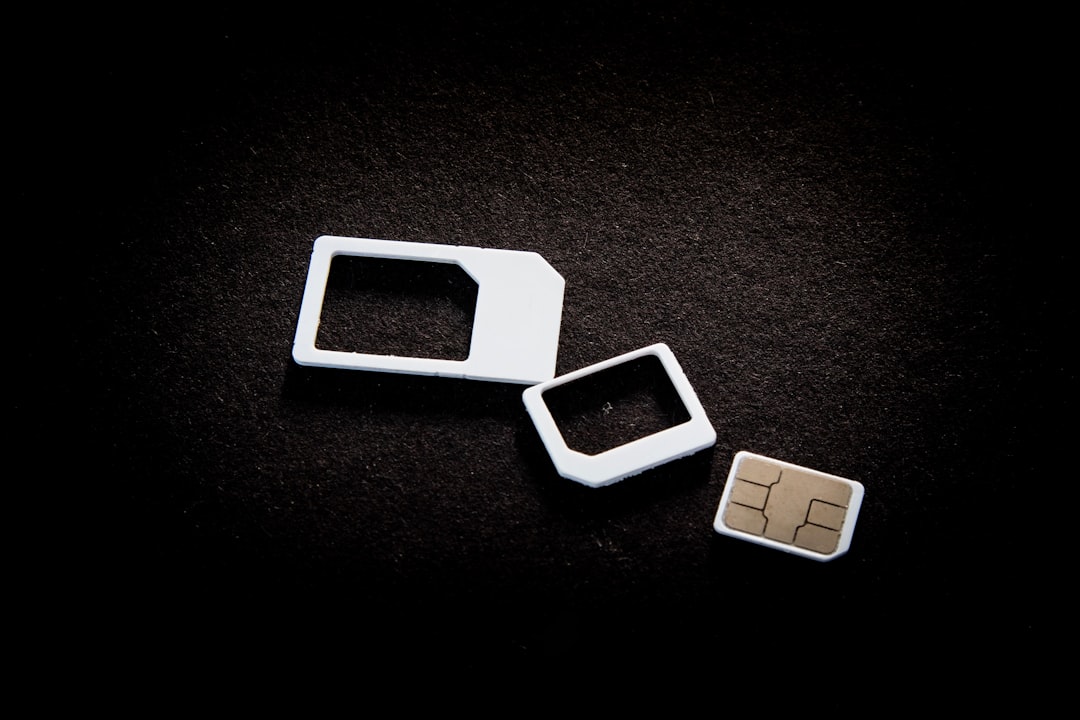
A SIM swap attack happens when a criminal tricks or bribes your mobile carrier into transferring your phone number to a SIM card they control — essentially hijacking your phone number without ever touching your physical device. Once they have your number, they can intercept the text message codes banks and apps use for two-factor authentication (2FA), which is a security step that sends a one-time code to confirm it’s really you logging in. From there, they can lock you out of your email, drain bank accounts, and open new credit in your name.
The good news: learning how to protect from SIM swap attacks takes about 30-45 minutes, and most of the steps are free. You’ll add a PIN to your mobile account, move your two-factor codes off of text messages, and lock down the accounts most likely to be targeted. None of this requires special technical skill — just a little time and your phone in hand.
Before You Start
What you’ll need:
- Your phone and the login for your mobile carrier account (Verizon, AT&T, T-Mobile, etc.)
- A government-issued photo ID (some carriers require ID verification to add extra security)
- Access to your email and any accounts that currently use text-message codes for login (banking, email, social media)
- 30-45 minutes, though setting up an authenticator app across many accounts can take longer if you have dozens of logins
Why this matters: Your phone number has quietly become one of the most valuable pieces of personally identifiable information (PII) you own. It’s not just how people reach you — it’s the master key many companies use to verify your identity. If someone else controls your number, they can reset passwords, receive verification codes, and take over accounts one by one. This is called account takeover, and SIM swapping is one of the fastest ways criminals accomplish it.
Step-by-Step Instructions
Step 1: Add a PIN or passcode to your mobile carrier account
This is the single most important step, because it’s the front door SIM swappers try to walk through.
- Verizon: Log in at verizon.com, go to Account > Account Settings > Sign-in & Security, and set up a Number Transfer PIN.
- AT&T: Log in at att.com, go to Profile > Sign-in Info > Wireless Passcode, and create a passcode separate from your account password.
- T-Mobile: Log in at t-mobile.com, go to Profile > Account Settings, and set up an “Account PIN” — T-Mobile also offers a free “Number Transfer PIN” specifically for porting protection.
Tip: Choose a PIN that isn’t your birthday, address digits, or anything easily guessed from public records or social media. Treat it like you would a debit card PIN.
If something goes wrong: If you can’t find the option online, call your carrier’s customer service line and say specifically: “I want to add a port validation PIN or passcode to prevent unauthorized SIM swaps on my account.” Using that exact phrase gets you routed to the right department faster than saying you’re worried about “security.”
Step 2: Ask about extra account protections
Most major carriers now offer additional locks beyond a basic PIN.
- Ask if your carrier offers “port freeze” or “number lock” protection, which blocks any SIM or number transfer until you personally unlock it.
- Some carriers also let you require in-store, photo-ID verification for any SIM changes — ask specifically for this option.
Gotcha: Some reps may not immediately know these features exist. Politely ask to be transferred to the fraud or account security department if the first representative seems unfamiliar with port freezes.
Step 3: Move your two-factor authentication off of SMS text codes
This step matters just as much as locking your carrier account, because it removes the reason a criminal would want your number in the first place.
- Download an authenticator app such as Google Authenticator, Microsoft Authenticator, or Authy.
- Go into your most important accounts one at a time — start with email, banking, and any account tied to money (PayPal, Venmo, your investment accounts).
- In each account’s security settings, look for “Two-Factor Authentication” or “Login Verification” and switch the method from “Text Message” to “Authenticator App.”
- Scan the QR code shown on screen with your authenticator app to link it.
What you’ll see: Most sites show a confirmation message like “Two-factor authentication updated” or send a confirmation email. Save any backup codes offered during setup — store them somewhere safe, like a password manager.
If something goes wrong: If an account only offers SMS-based 2FA with no app option, check for a “security key” option instead — a physical device like a YubiKey provides even stronger protection.
Step 4: Set up a password manager and unique passwords
A password manager is a secure app that creates and stores strong, unique passwords for every account so you don’t have to remember them. This matters here because if your phone number is compromised, unique passwords stop a criminal from simply resetting your way into every other account.
- Choose a reputable password manager and set a strong master password.
- Update your most sensitive accounts first — email, banking, and anything storing payment information.
Step 5: Lock down your email account specifically
Your email is usually the account SIM swappers go after first, because it’s the gateway to resetting everything else.
- Confirm your email account uses an authenticator app (not text) for 2FA.
- Review your account recovery phone number and remove your number if an authenticator app or backup email is available instead.
Step 6: Freeze your credit as a backup layer
Even with your phone locked down, it’s worth adding a credit freeze (sometimes called a security freeze) — a free lock on your credit report that blocks anyone, including you temporarily, from opening new credit without unlocking it first. This protects you even if a SIM swap slips through.
- Freeze your file at all three bureaus: [Equifax](https://www.equifax.com/personal/credit-report-services/credit-freeze/), [Experian](https://www.experian.com/freeze/center.html), and [TransUnion](https://www.transunion.com/credit-freeze).
- Each will give you a PIN or password to unfreeze later — save these somewhere secure.
Verify It Worked
- Carrier PIN: Log back into your carrier account after 24 hours and confirm the PIN or port freeze status shows as “active.” Some carriers send a confirmation text or email — that’s your proof it’s set.
- 2FA changes: Log out and back into each updated account to confirm it now asks for your authenticator app code instead of a text message.
- Credit freeze: Each bureau sends a confirmation letter or online confirmation screen with your PIN. Save this information — you’ll need it if you ever want to apply for credit and need to lift the freeze temporarily.
If you don’t see confirmation within a few days, log back in and re-check the setting, or call the company directly to confirm it’s active.
Common Issues and Fixes
| Problem | Fix |
|---|---|
| Carrier rep says PIN protection isn’t available | Ask for the fraud or account security department specifically |
| App-based 2FA option is missing on an account | Look for a “security key” or physical token option instead |
| You lose your authenticator app (new phone, etc.) | Use saved backup codes, or contact the company’s account recovery process — this is why saving backup codes matters |
| Credit freeze PIN is lost | Each bureau has an online PIN recovery process using identity verification questions |
| You suspect a SIM swap has already happened | Call your carrier immediately and use the phrase “unauthorized SIM swap” to trigger fraud protocols, then contact your bank |
When to escalate: If your carrier won’t restore your number or investigate a suspected SIM swap, you can file a complaint with the [FCC Consumer Complaint Center](https://consumercomplaints.fcc.gov/) and a report at [IdentityTheft.gov](https://www.identitytheft.gov), which also generates an FTC identity theft report — an official document that helps you dispute fraudulent accounts opened in your name. If a bank refuses to reverse fraudulent transactions tied to a SIM swap, you can also file a complaint with the [Consumer Financial Protection Bureau (CFPB)](https://www.consumerfinance.gov/complaint/).
What to Do Next
- Check your credit reports for free at [AnnualCreditReport.com](https://www.annualcreditreport.com) to look for any accounts you don’t recognize.
- Set a calendar reminder every 6 months to review your carrier account settings, since porting rules and options do change.
- Consider a fraud alert as a lighter-weight option if a full freeze feels like too much — a fraud alert tells lenders to verify your identity before opening credit, while a freeze blocks new credit outright. Here’s the difference:
| Feature | Fraud Alert | Credit Freeze |
|---|---|---|
| Cost | Free | Free |
| What it does | Asks lenders to verify identity before approving credit | Blocks new credit accounts entirely until unfrozen |
| Duration | 1 year (extendable to 7 years with an identity theft report) | Until you lift it |
| Best for | Light protection, easier for occasional new credit | Strong protection, especially after a SIM swap or breach |
- Enroll in dark web monitoring, a service that scans criminal marketplaces and forums for your phone number, email, and other personal information so you’re alerted quickly if it surfaces after a breach.
FAQ
Will my carrier charge me to add a PIN or port freeze?
No — these protections are free at every major U.S. carrier. If a representative tries to charge you, ask to speak with a supervisor or the fraud department directly.
How do I know if I’ve already been SIM swapped?
The clearest sign is your phone suddenly showing “No Service” with no explanation, especially paired with unexpected password reset emails. If this happens, call your carrier immediately from another phone and use the words “unauthorized SIM swap.”
Is a SIM swap the same as phishing?
No — phishing is a fake email or text designed to trick you into giving up passwords, while a SIM swap involves fraudulently transferring your phone number itself. They’re often used together, since a stolen password plus a hijacked phone number can bypass most security checks.
Does a credit freeze stop a SIM swap from happening?
No, but it limits the damage if one does happen by blocking new accounts from being opened in your name. Think of it as a backup layer, not a replacement for carrier-level protection.
How often should I redo these steps?
Once your carrier PIN and authenticator app are set up, you don’t need to redo them — just check every 6 months that settings haven’t reset after a plan change or phone upgrade. It’s also smart to recheck after any customer service call to your carrier, since reps sometimes reset settings unintentionally.
Conclusion
SIM swap attacks sound alarming, but they rely on gaps most people don’t know exist — and now that you’ve closed them, you’re in a genuinely stronger position than the vast majority of phone users. A carrier PIN, app-based two-factor authentication, and a credit freeze together form a layered defense that’s hard for criminals to get through.
Identity security isn’t a one-time task, though — it’s an ongoing habit, and that’s exactly where IdentityProtector.com can help carry the load. With real-time alerts when your information turns up in a data breach or on the dark web, credit monitoring across all three bureaus, and hands-on recovery specialists ready to help if something does slip through, you don’t have to keep watch alone. Take a few minutes today to see where your identity currently stands — future you will be glad you did.